Track body measurements and progress photos
Log your weight, body measurements, and progress photos to see how your body changes over time.
Log measurements and photos
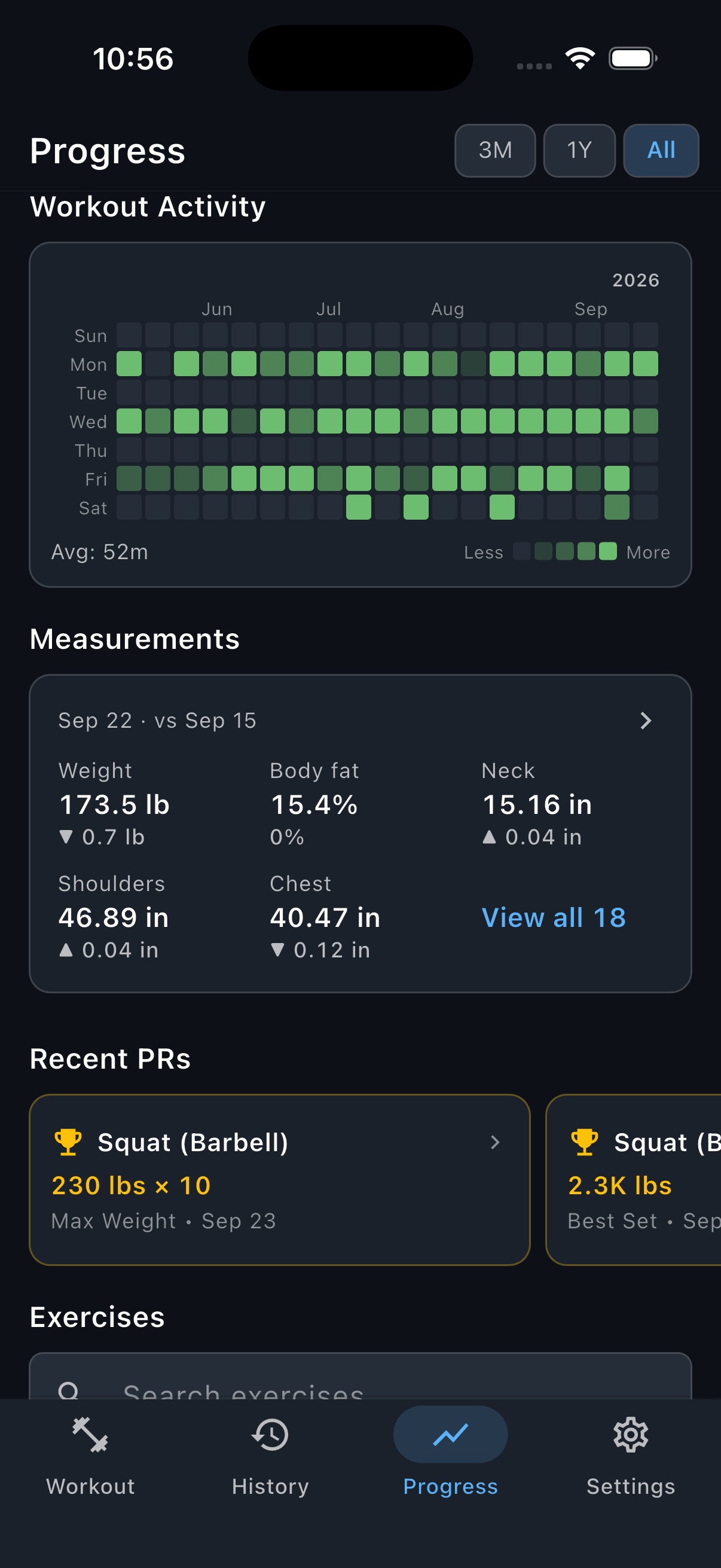
Open Progress, scroll to Measurements, and tap the card.
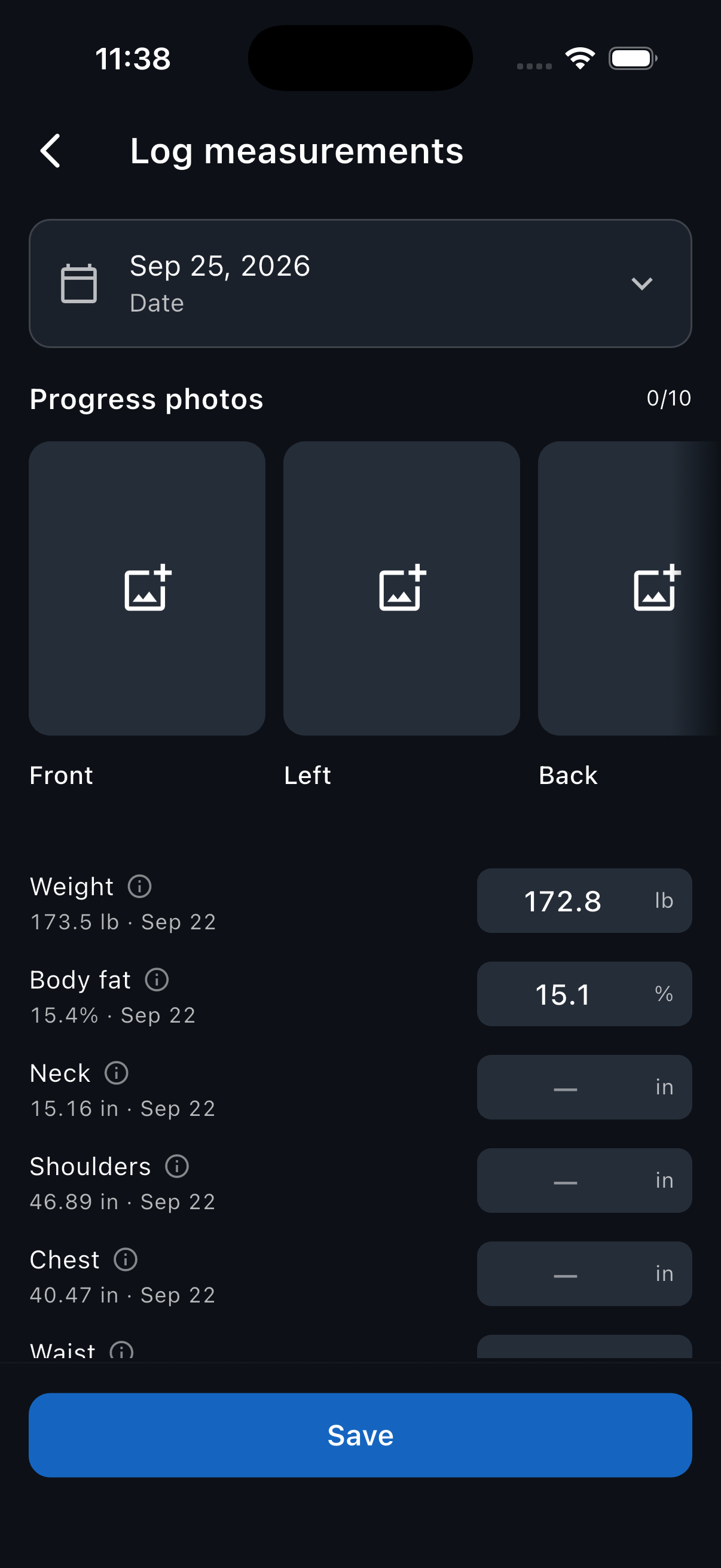
Tap Log measurements.
Enter the measurements you took and leave the rest blank. To see how to take a measurement, tap the info icon beside its name.
To log an earlier day, tap the date and choose the day.
To add a progress photo, tap a photo slot such as Front, then choose Take photo or Choose photo. To zoom, reposition, or rotate the photo, tap it and choose Adjust photo, then tap Done once it's framed.
Tap Save. Your measurements and photos are saved to that day's check-in.
See how your measurements change
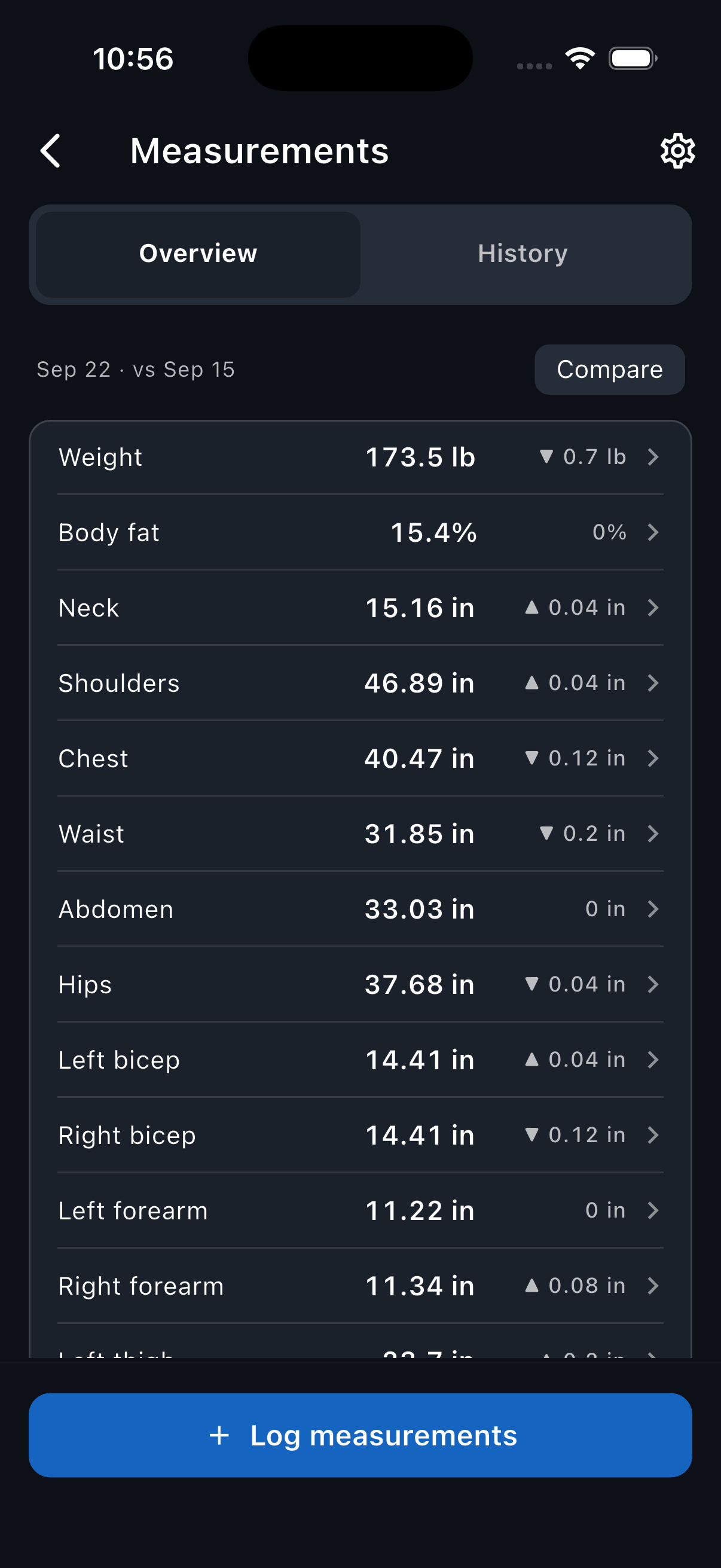
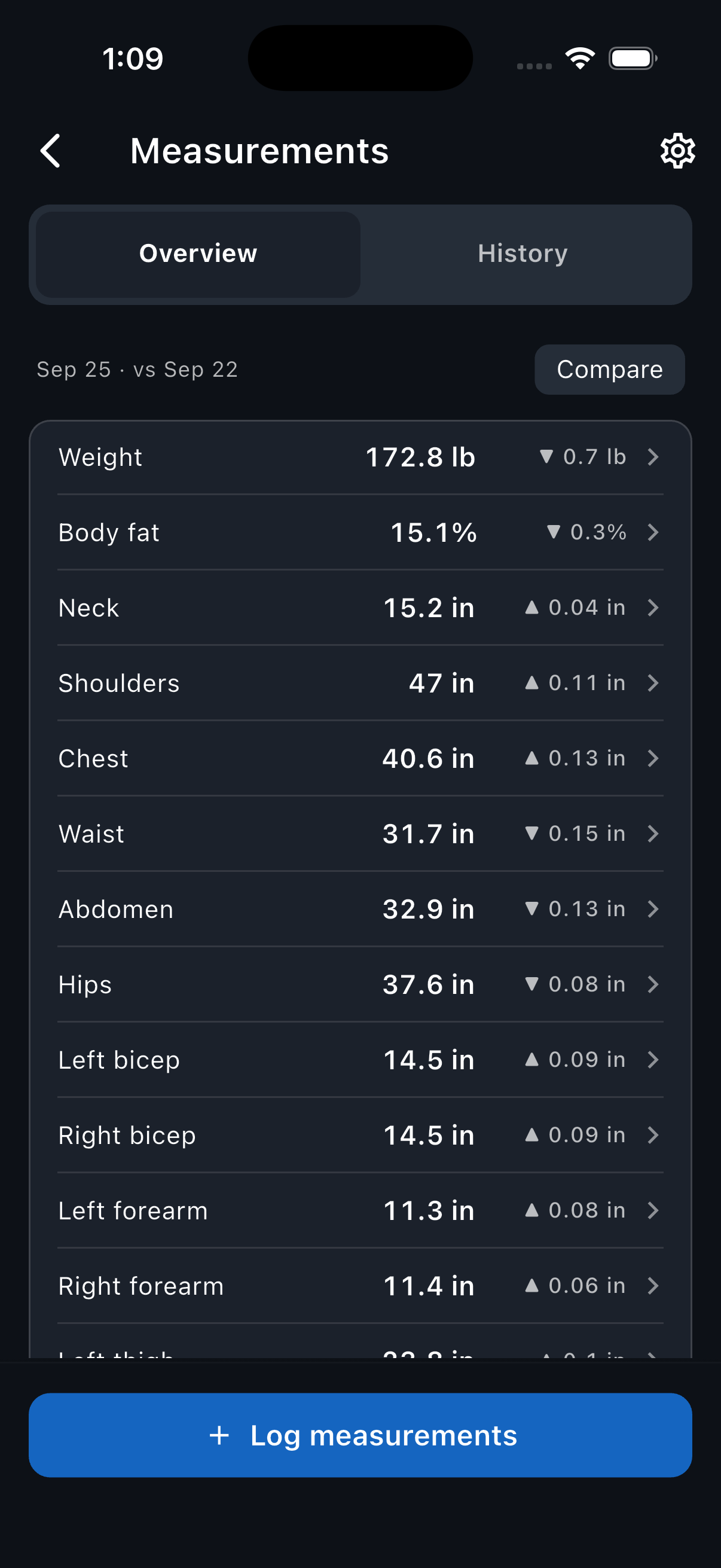
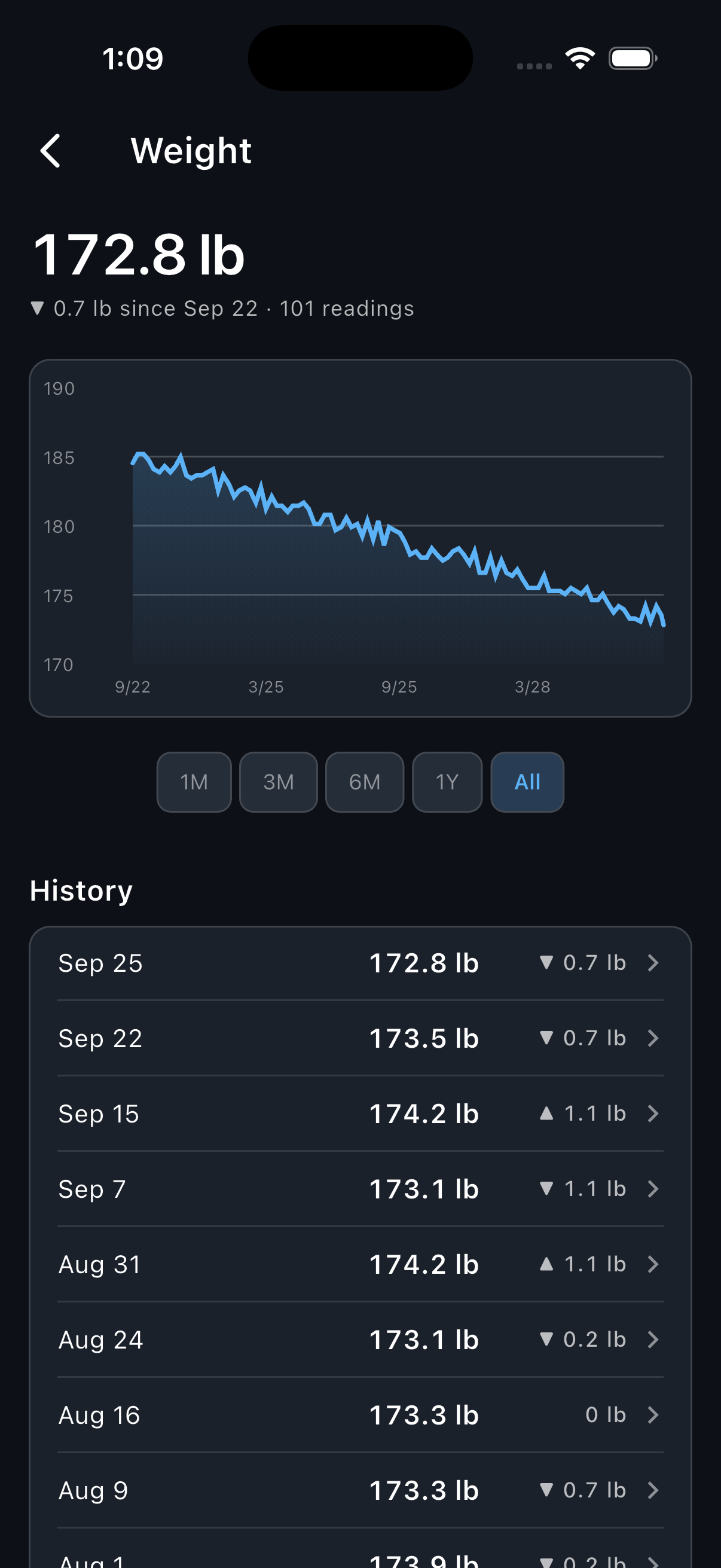
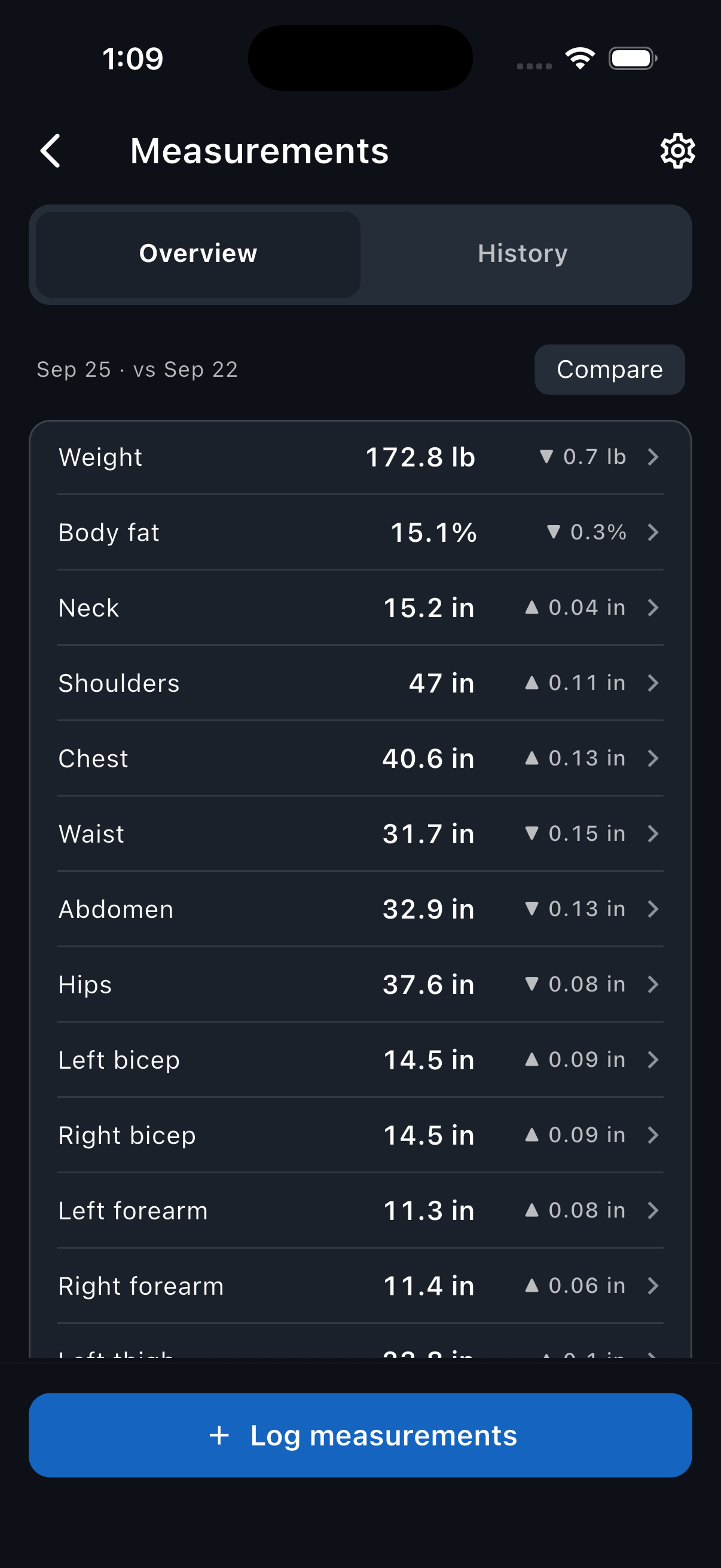
On the Measurements screen, Overview shows the latest reading of each measurement and how much it changed since the reading before it. Tap a measurement to see its chart and past readings.
Compare photos and measurements from two dates
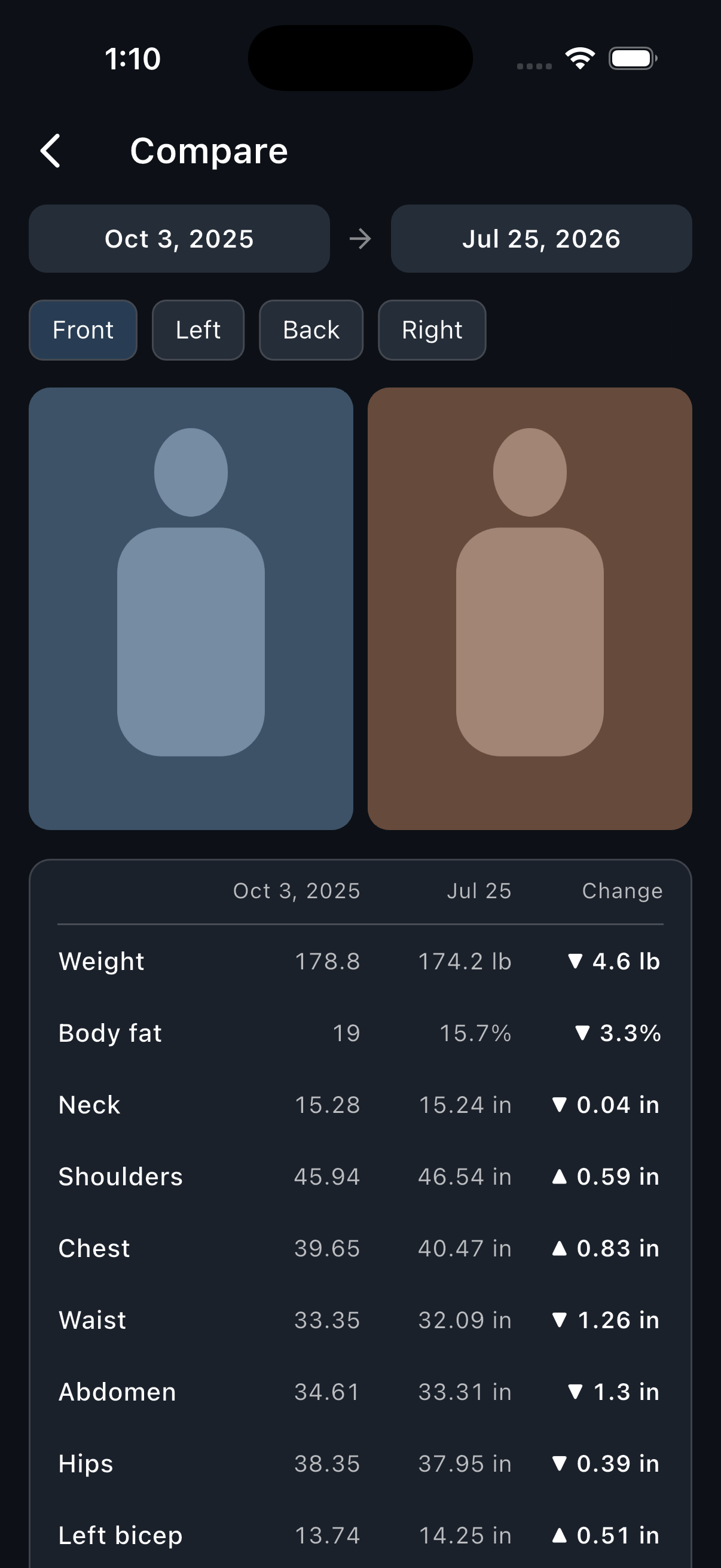
Once you have two check-ins, tap Compare on Overview. It opens on your two latest check-ins, side by side. Tap either date to compare a different check-in, or tap a view such as Back to see its photos.
Edit or delete a check-in
On the Measurements screen, tap History, then tap the check-in. You can also tap a reading below a measurement's chart. Change or clear what you need, then tap Save.
To move a check-in to another day, open it and change its date.
Deleting a check-in permanently removes every measurement and photo from that day. To delete one, open it, tap the three dots at the top, choose Delete, and tap Delete again to confirm.
Change units and photo quality
Tap the gear icon at the top of the Measurements screen to open Customize.
- Under Units, choose kg or lb for Body weight and cm or in for Measurements. Changing these doesn't change the units you use for workouts.
- Under Photo quality, choose Original to keep new photos at full resolution. Original photos use about ten times the space on your phone and in backups.
Turn off, reorder, or add measurements and photo views
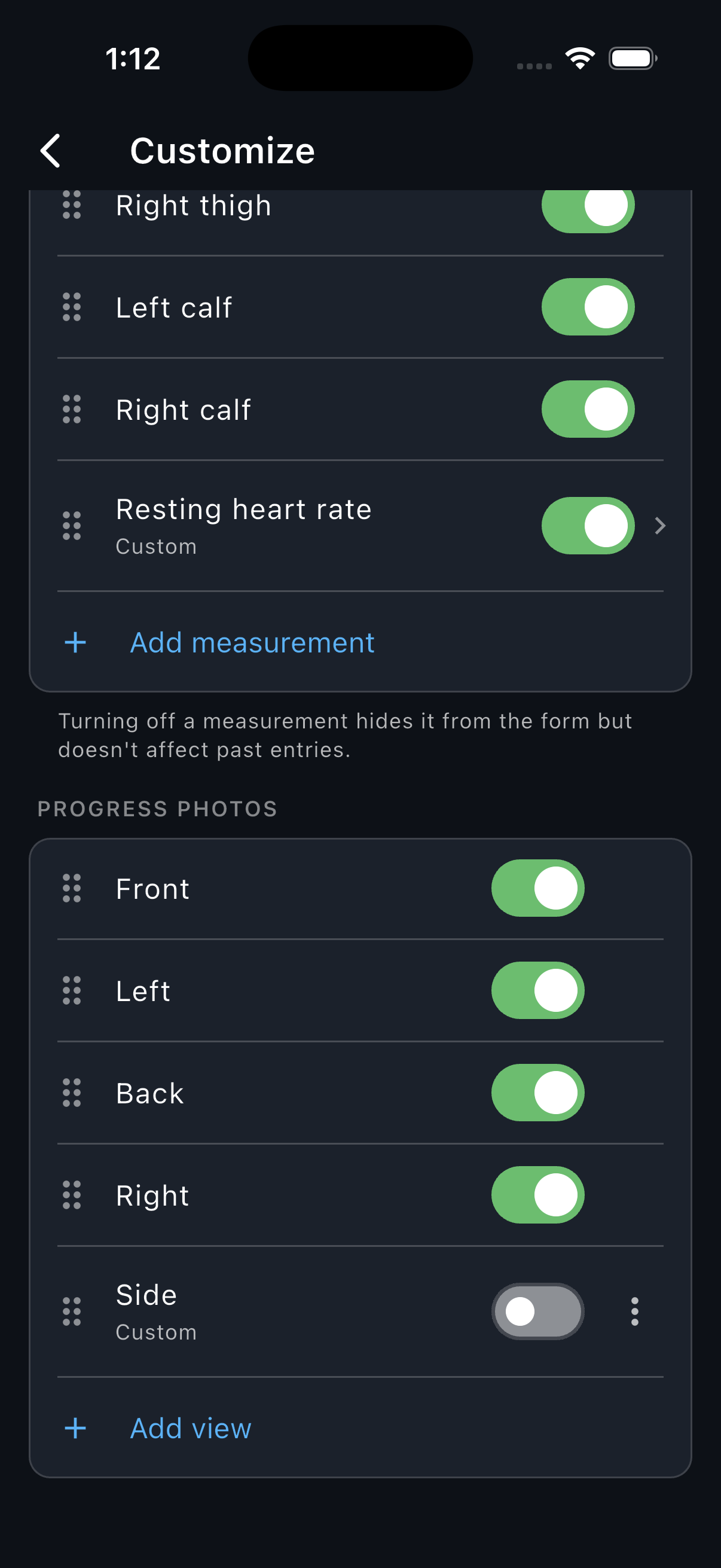
In Customize (the gear icon on the Measurements screen), turn off the measurements and photo views you don't use, and drag the rest into the order you take them. Turning one off hides it when you log and on Overview, and keeps its past readings and photos.
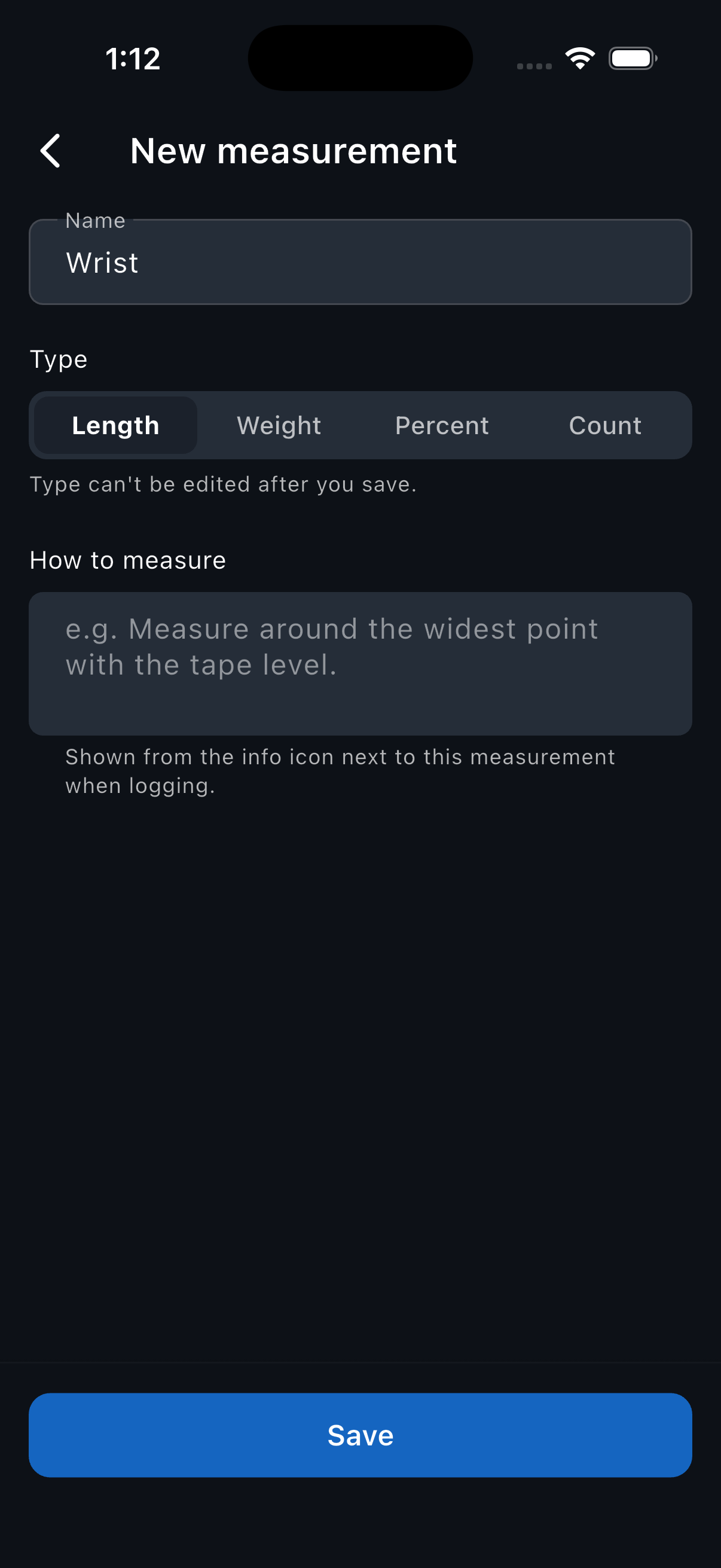
To track a measurement that isn't listed, such as your wrist, tap Add measurement, enter a name, choose its Type (Length, Weight, Percent, or Count), and tap Save. You can't change the type after saving. To add a photo view, such as a flexed pose, tap Add view in Customize or at the end of the photo slots while logging, enter a name, and tap Add view again.
Still need help? Email support@trackreps.com.