
Exercise notes
Record how an exercise felt and keep useful reminders for future workouts.
Choose a note or pinned note
- Choose Add Note to record how an exercise felt in one workout. It stays with that workout in History and doesn’t carry forward.
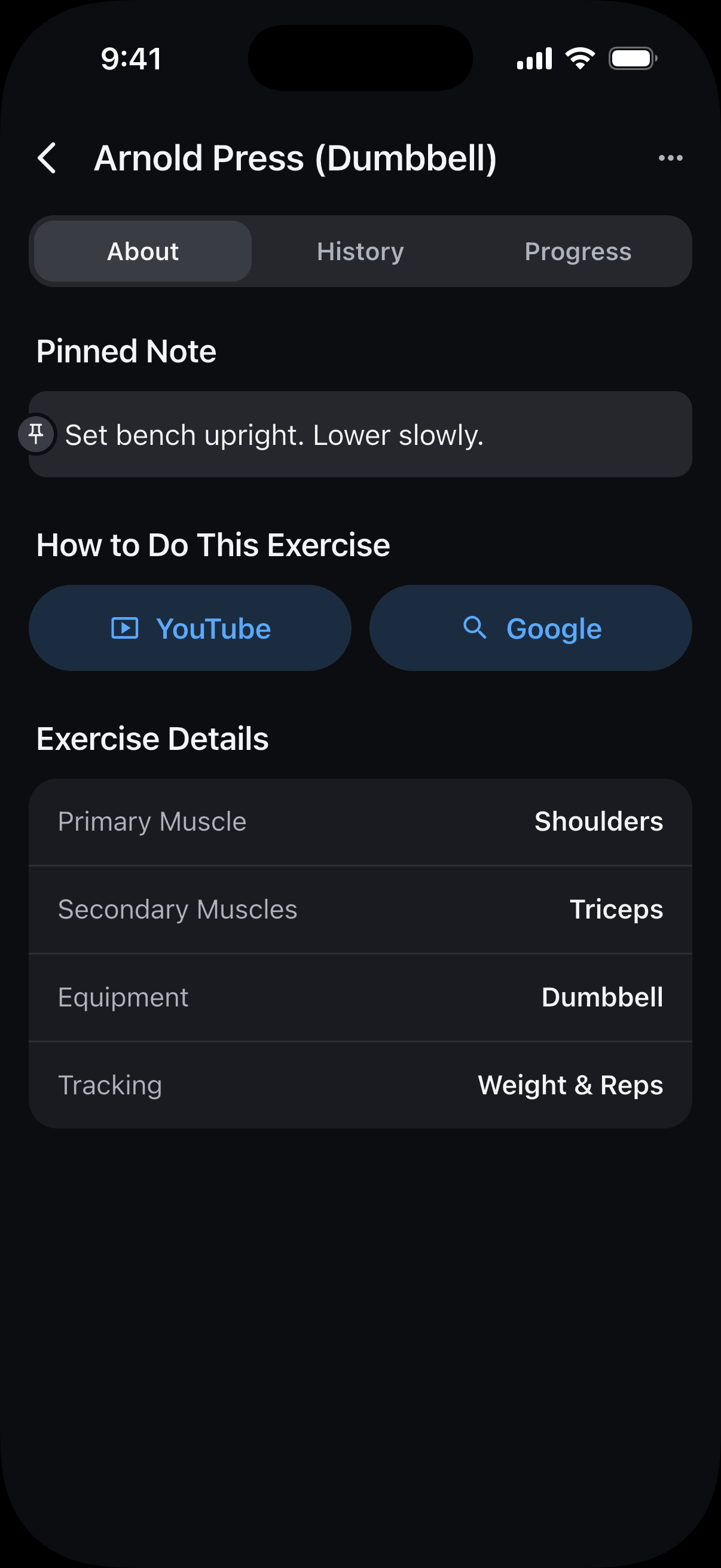
- Choose Add Pinned Note for a reusable reminder. It appears during workouts and on the exercise’s About tab, but not in past workouts.
Add a note during a workout
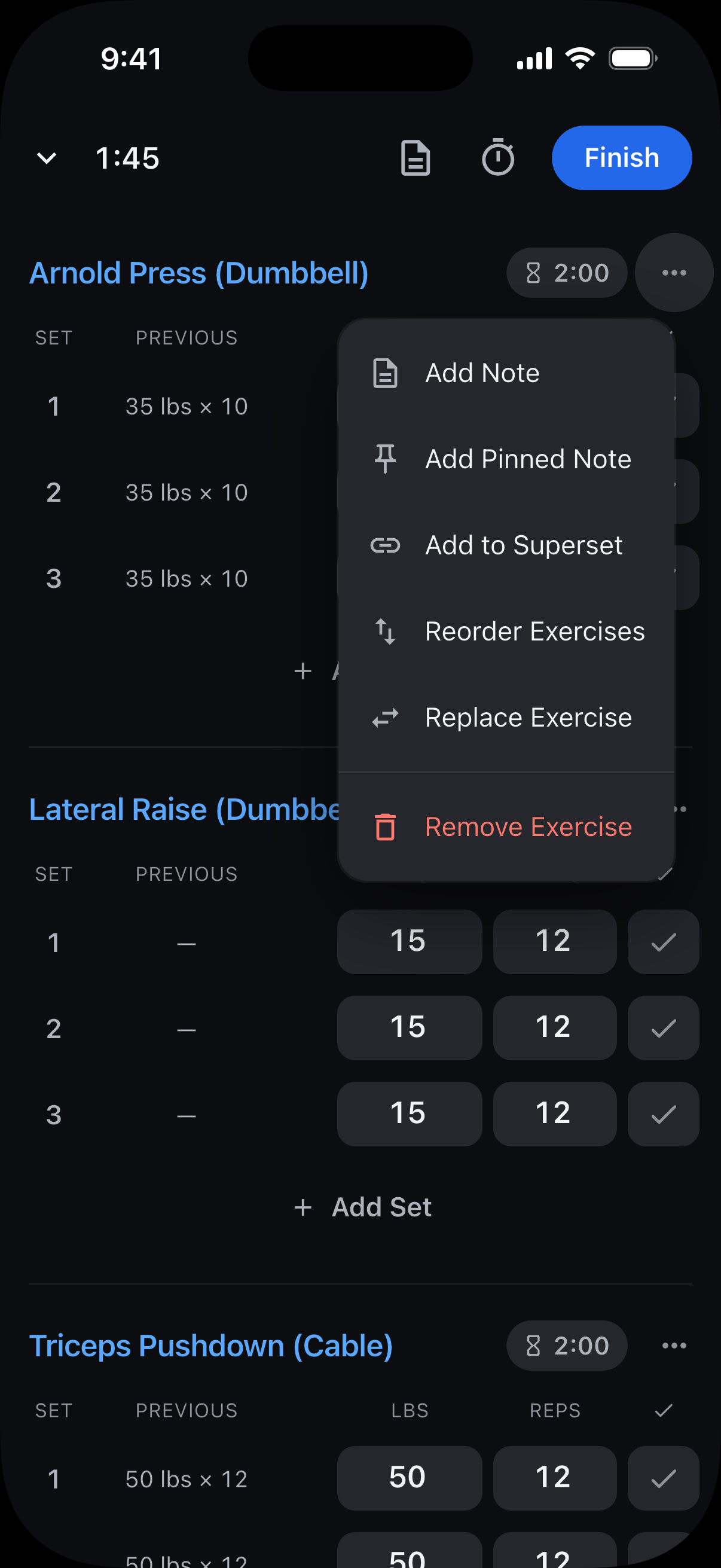
Tap the three-dot menu beside the exercise name.
Choose Add Note or Add Pinned Note.
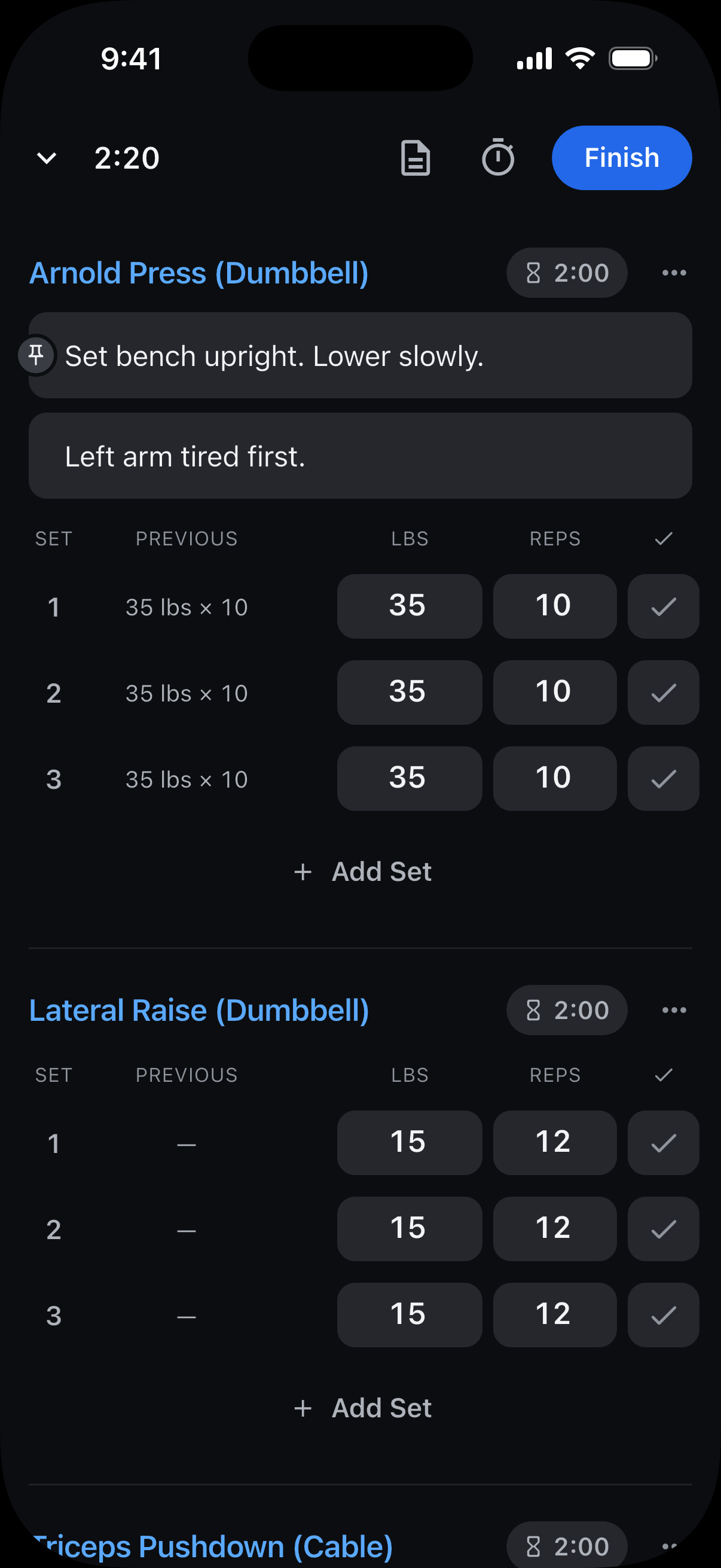
Enter your note beneath the exercise name.
Tap an existing note to edit it. The pin icon identifies a pinned note.
Find or edit a past exercise note
Open History, then tap the workout.
Tap the three dots at the top, then tap Edit Workout. Tap the exercise’s note to edit it, or tap the three dots beside the exercise name and choose Add Note. Tap Save.
You can also reach a past workout while logging: tap the exercise name to open its history, then tap a workout card.
Edit a pinned note in Progress
Start with an exercise you’ve recorded in a finished workout.
Open Progress, tap Search exercises, and type the exercise’s name. You can also find it under Exercises, where View All lists every exercise.
Tap the exercise name, tap About, then tap its pinned note to edit it.
The updated reminder is used in future workouts. It does not change notes saved with past workouts.
Still need help? Email support@trackreps.com.